To ensure you have enough time to prepare your space for Guests, you can set a Booking Notice period. This prevents last-minute bookings by ensuring Guests cannot book a stay if they are due to check in within a timeframe that doesn't work for you.
Setting a notice period helps you avoid the need to manually reject bookings, which keeps your acceptance rate high and ensures your Host experience is stress-free.
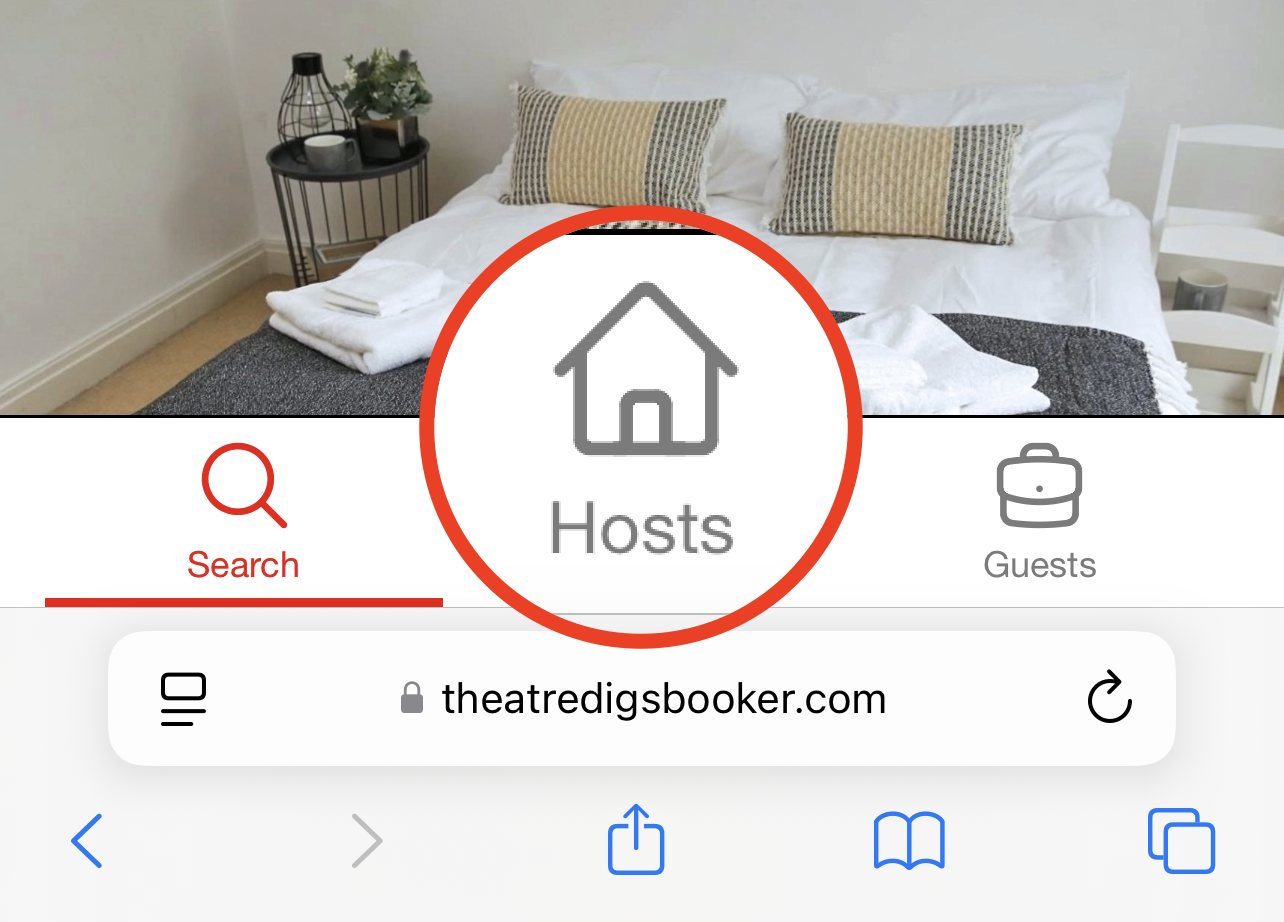
1. Log into your Host account.
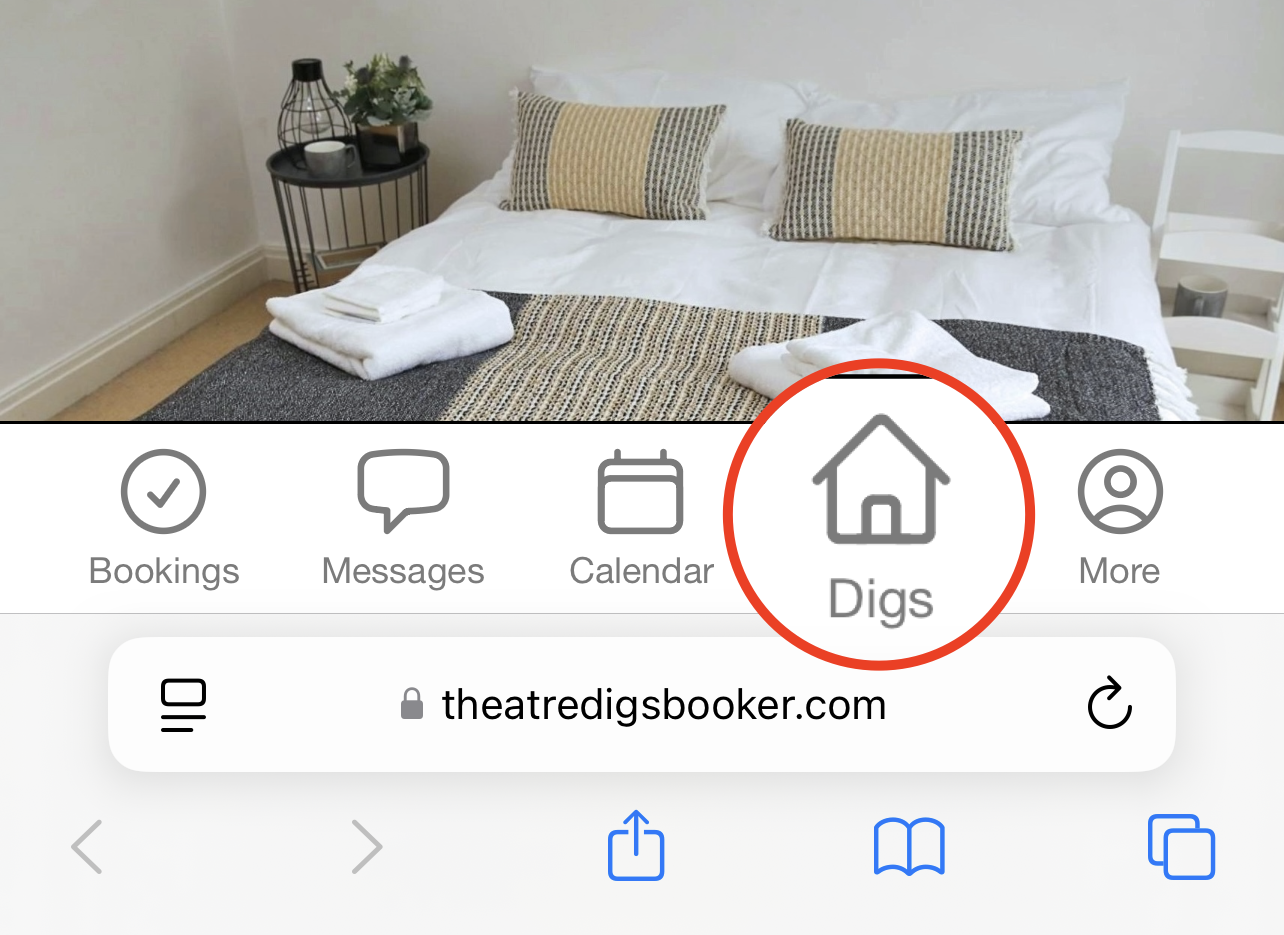
2. Click on the 'Digs' Tab.
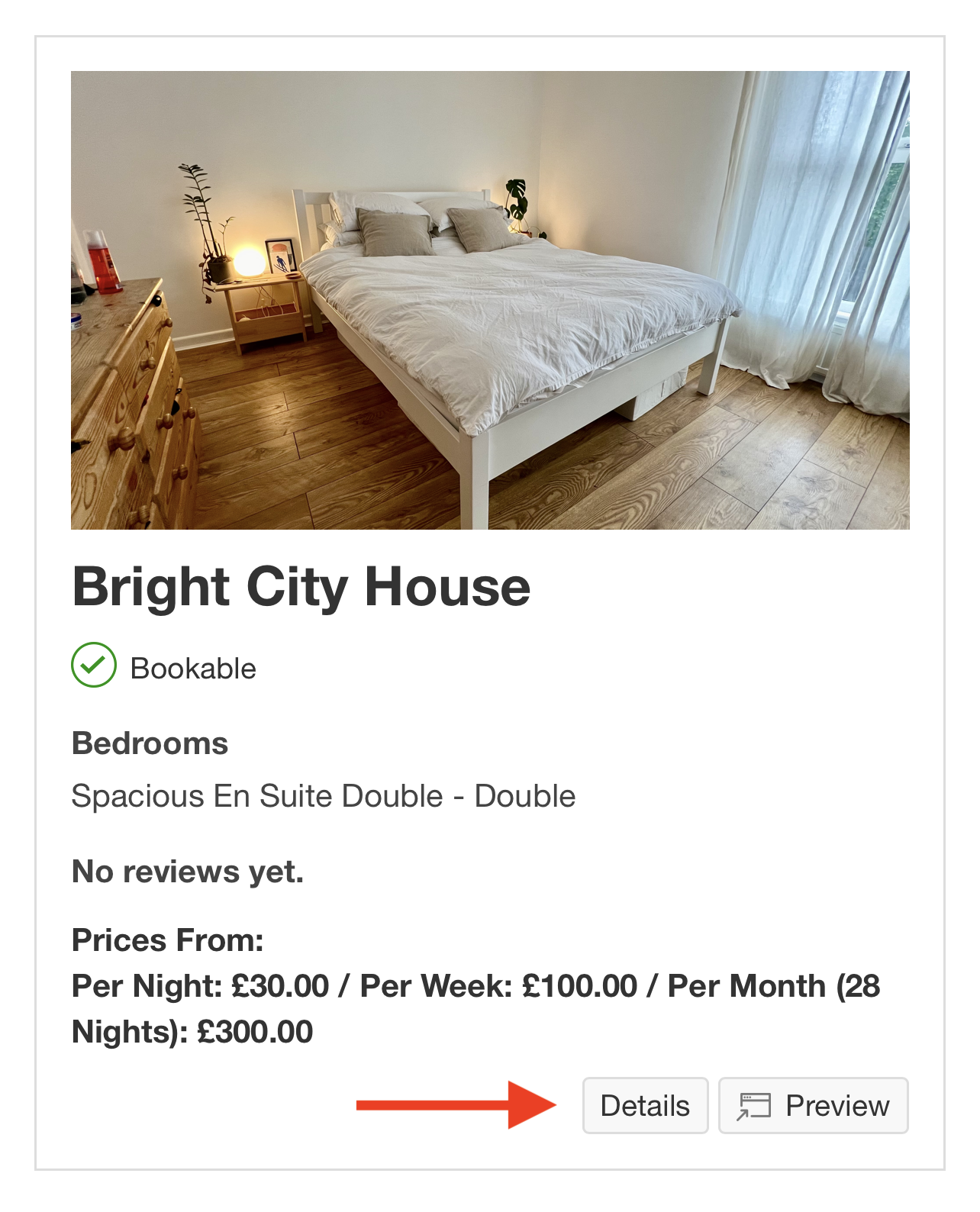
3. Click on 'Details' next to the listing you wish to amend.
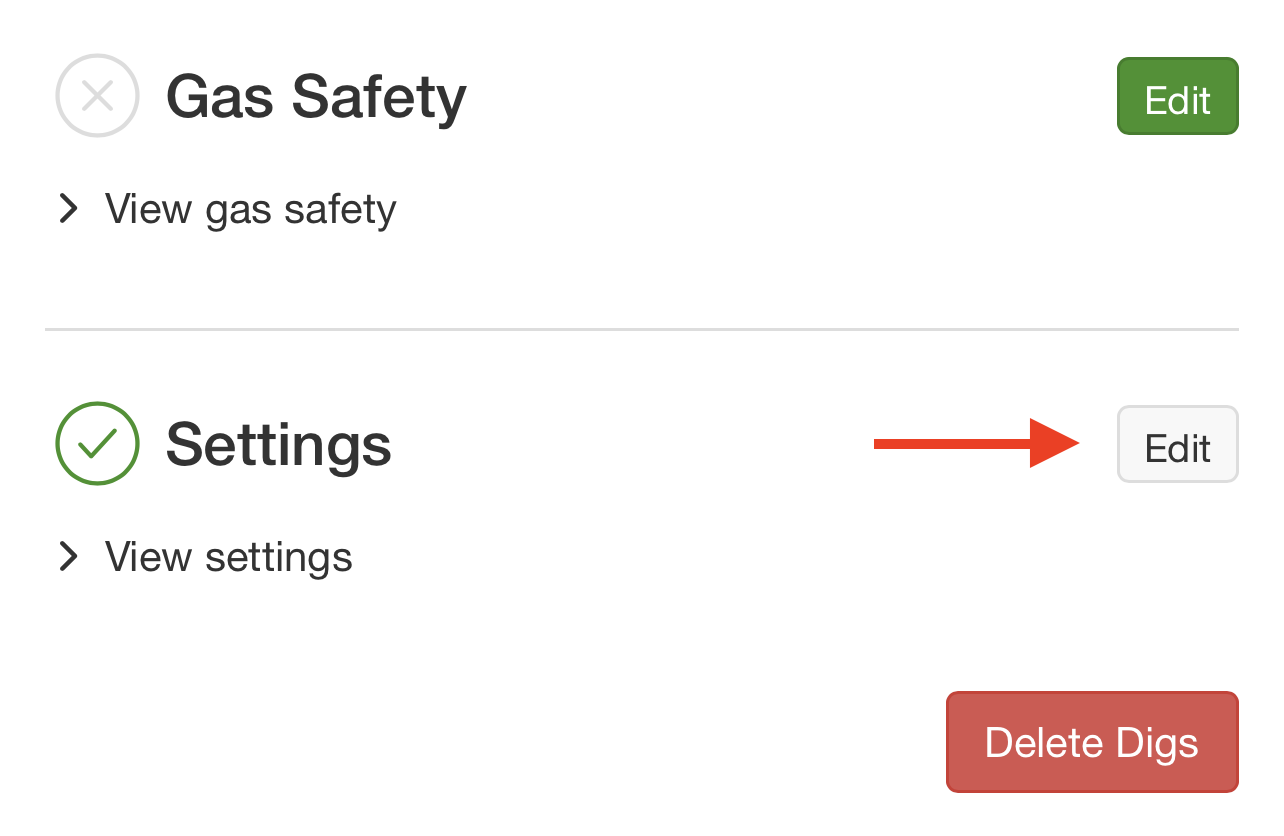
4. Scroll down and navigate to the Settings tab.
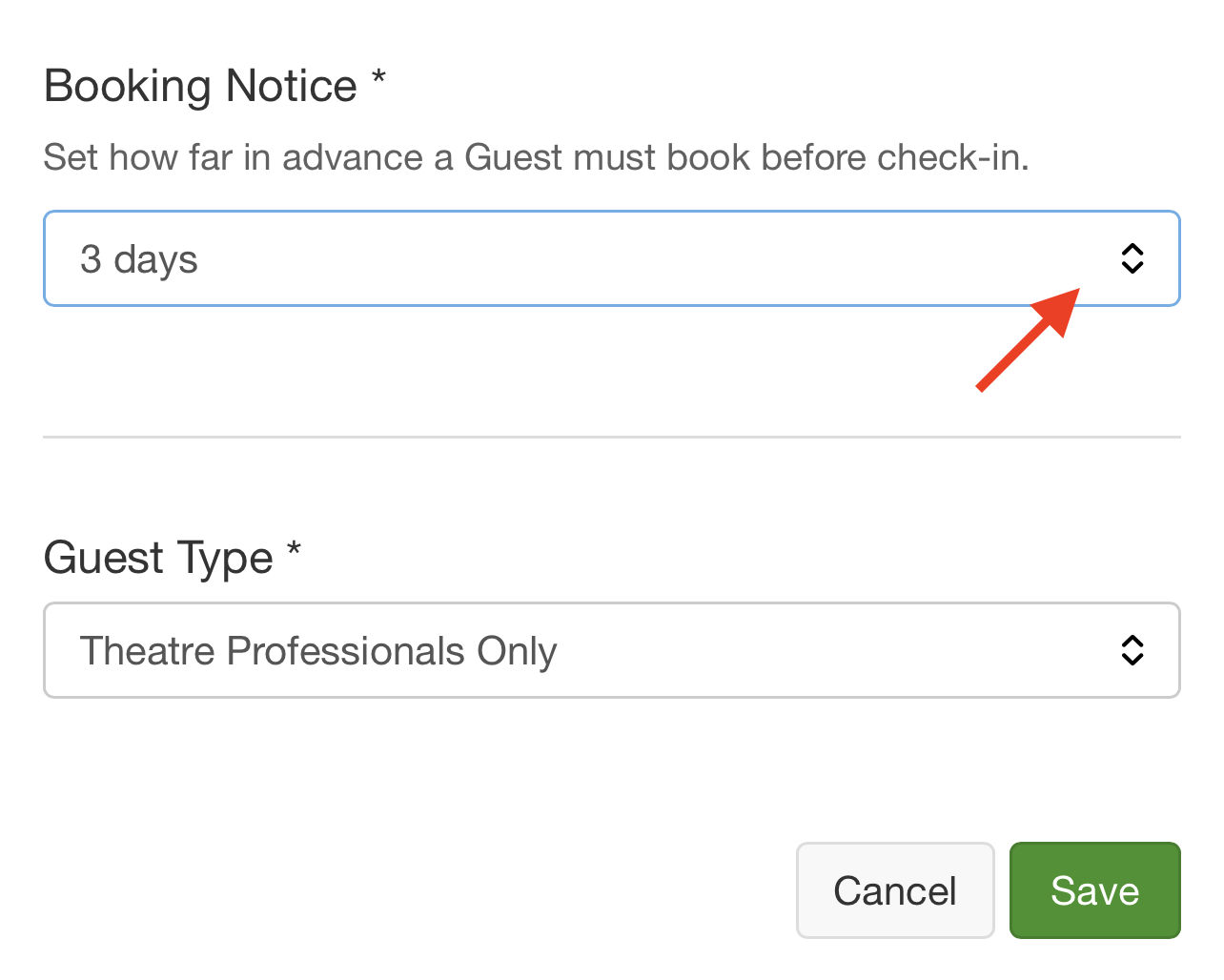
5. Scroll down to the Booking Notice section. By default, this may be set to "Same Day". Then, click the dropdownmenu and select the amount of notice you require. You can choose any period from Same Day up to 7 Days.
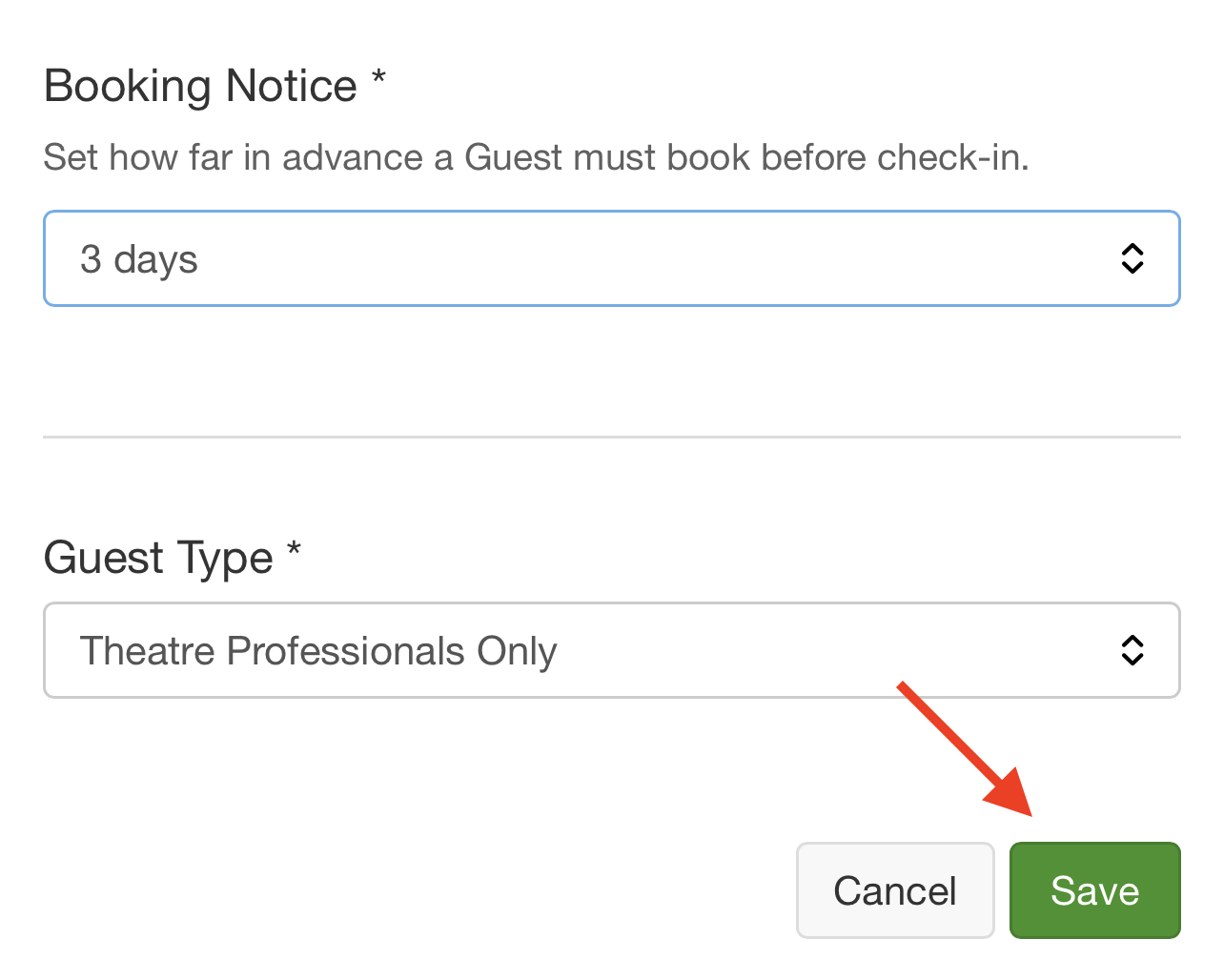
6. Click the Save button at the bottom of the page to apply your new settings.
That's it! You've updated your notice period.
Was this article helpful?
That’s Great!
Thank you for your feedback
Sorry! We couldn't be helpful
Thank you for your feedback
Feedback sent
We appreciate your effort and will try to fix the article