Setting stay length requirements allows you to control your availability, prevent unwanted short stays, and manage longer-term occupancy.
Updating these rules will not affect any current or upcoming bookings.
Jump To
How to Edit Your Stay Limits
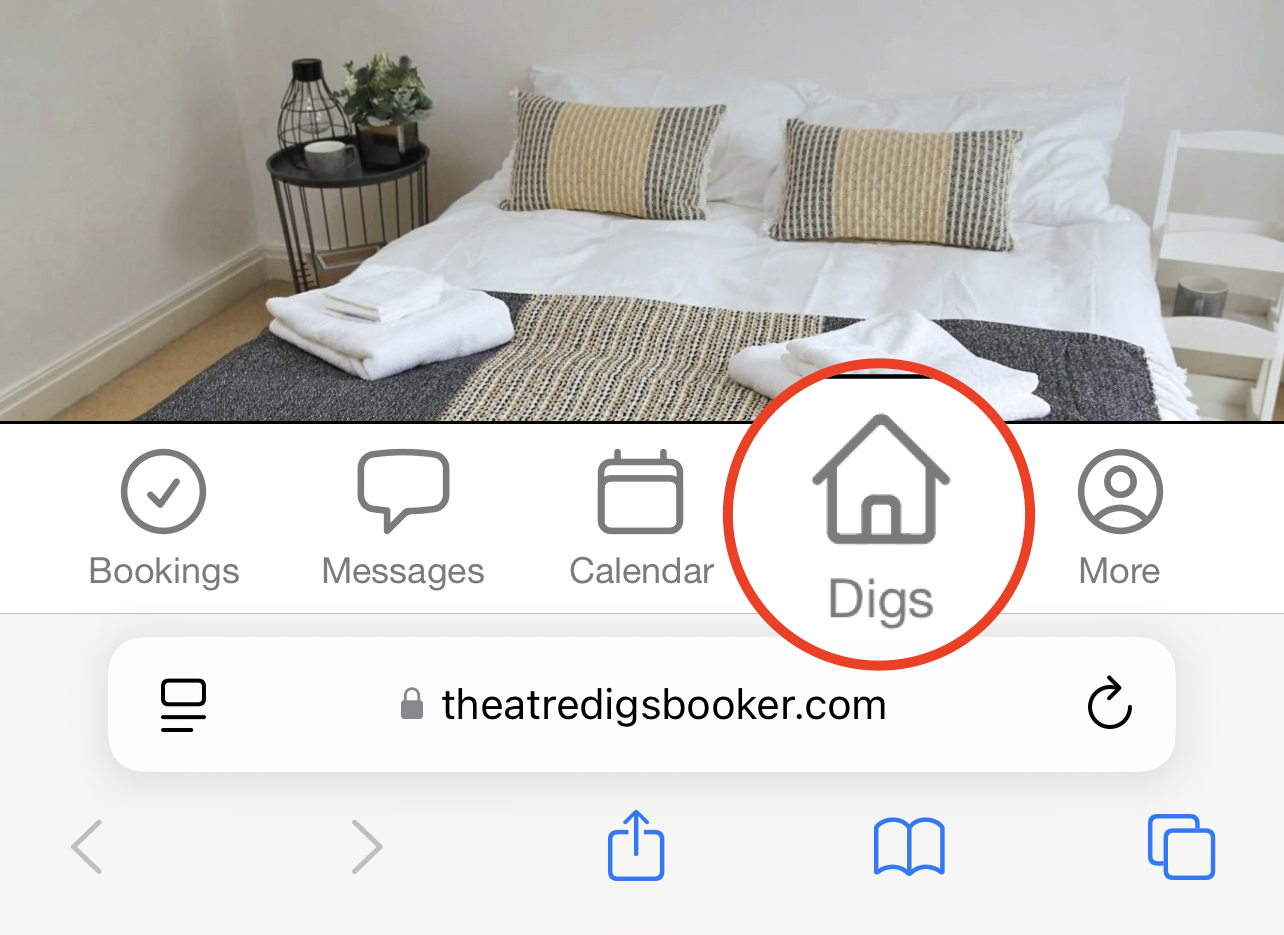
1. Tap on the Digs tab.
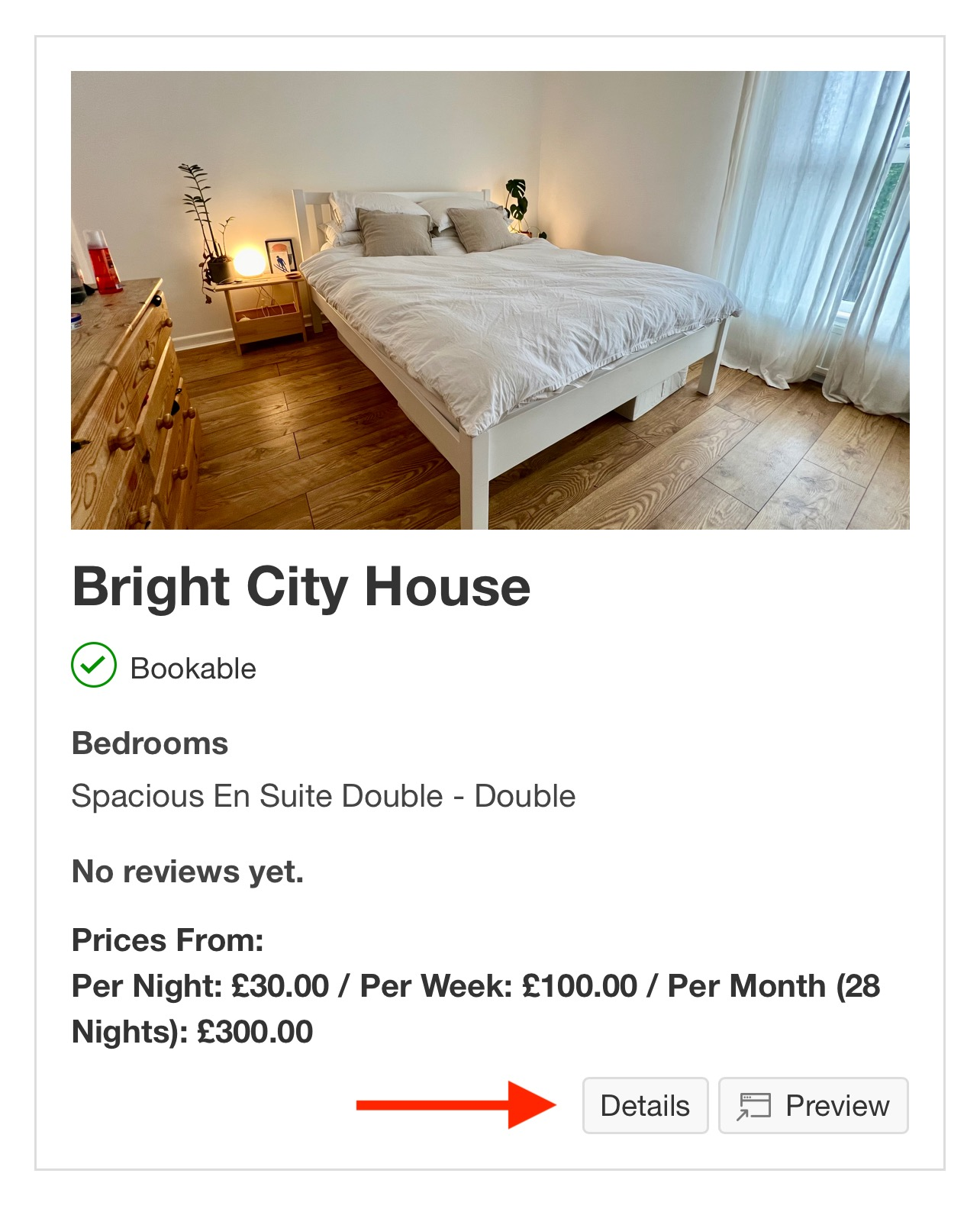
2. Locate the listing you wish to edit and tap Details to open the overview page.
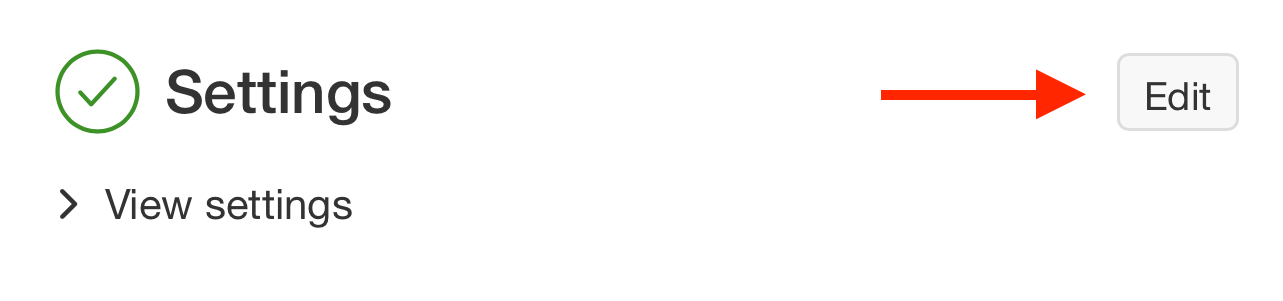
3. Scroll down to the Settings section and tap Edit.
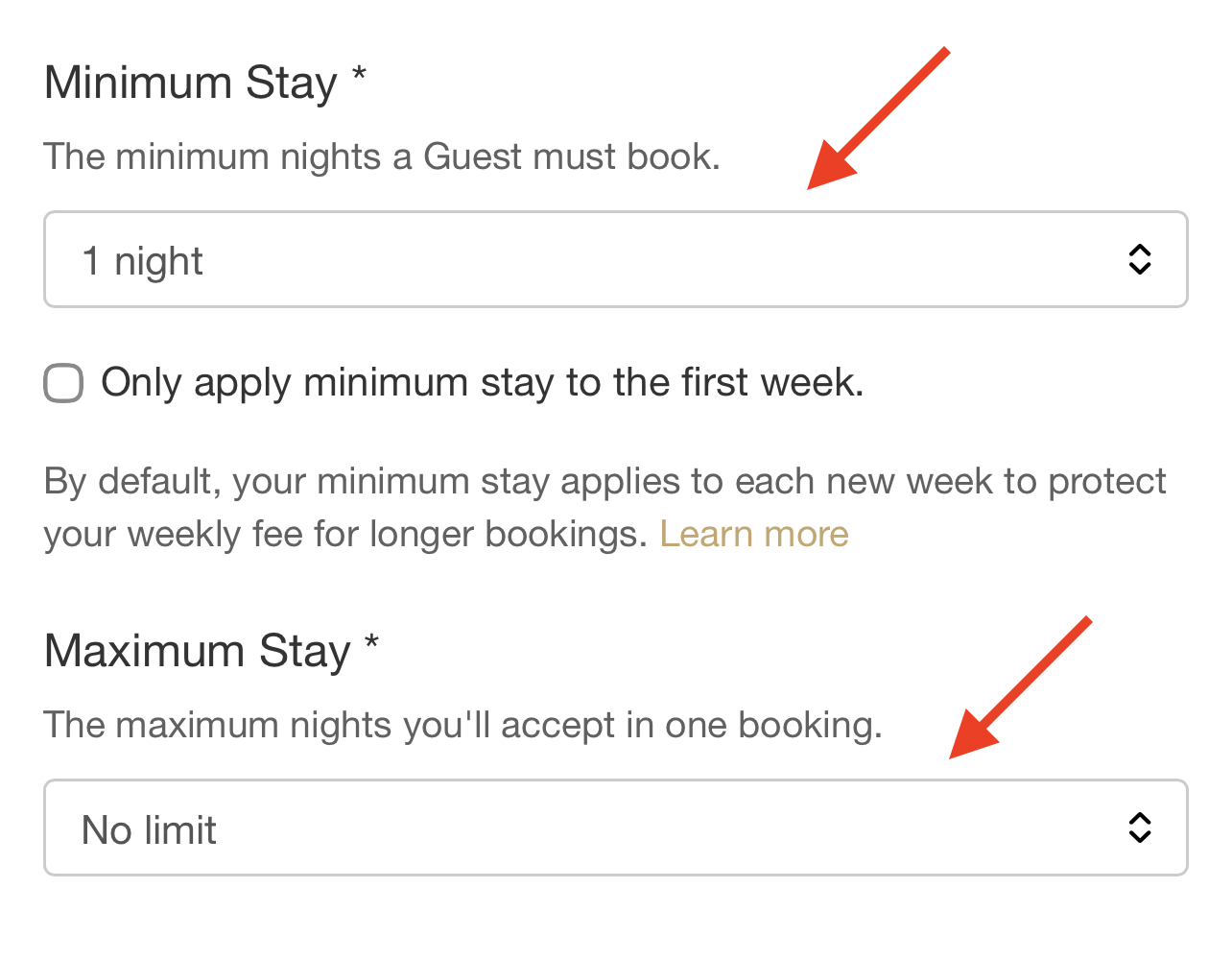
4. Enter your desired values into the Minimum Stay and Maximum Stay fields.
5. Scroll down and tap Save to apply your changes.
Understanding Minimum Stay Rules
When setting a minimum stay, you can choose how the rule applies to multi-week stays using the checkbox: "Only apply minimum stay to the first week".
- Checkbox Unticked (Default): Each 7-day period is treated as a new week, and your minimum stay rule applies again to any remaining partial week.
- Example: With a 3-night minimum stay, an 8-night booking calculates as 7 nights standard rate + 3 nights minimum stay rate. This protects Hosts from losing a potential full-week booking on the second week.
- Checkbox Ticked: The minimum stay restriction applies strictly to the initial check-in week.
- Example: With a 3-night minimum stay, an 8-night booking calculates as 7 nights standard rate + 1 single night rate.
Setting Maximum Stay
The Maximum Stay field limits the total consecutive nights a single Guest can request for a booking. Enter the upper limit of nights (e.g., 14, 30, or 90) to prevent bookings longer than your preferred duration. Leave this field blank if you do not want an upper restriction.
Was this article helpful?
That’s Great!
Thank you for your feedback
Sorry! We couldn't be helpful
Thank you for your feedback
Feedback sent
We appreciate your effort and will try to fix the article