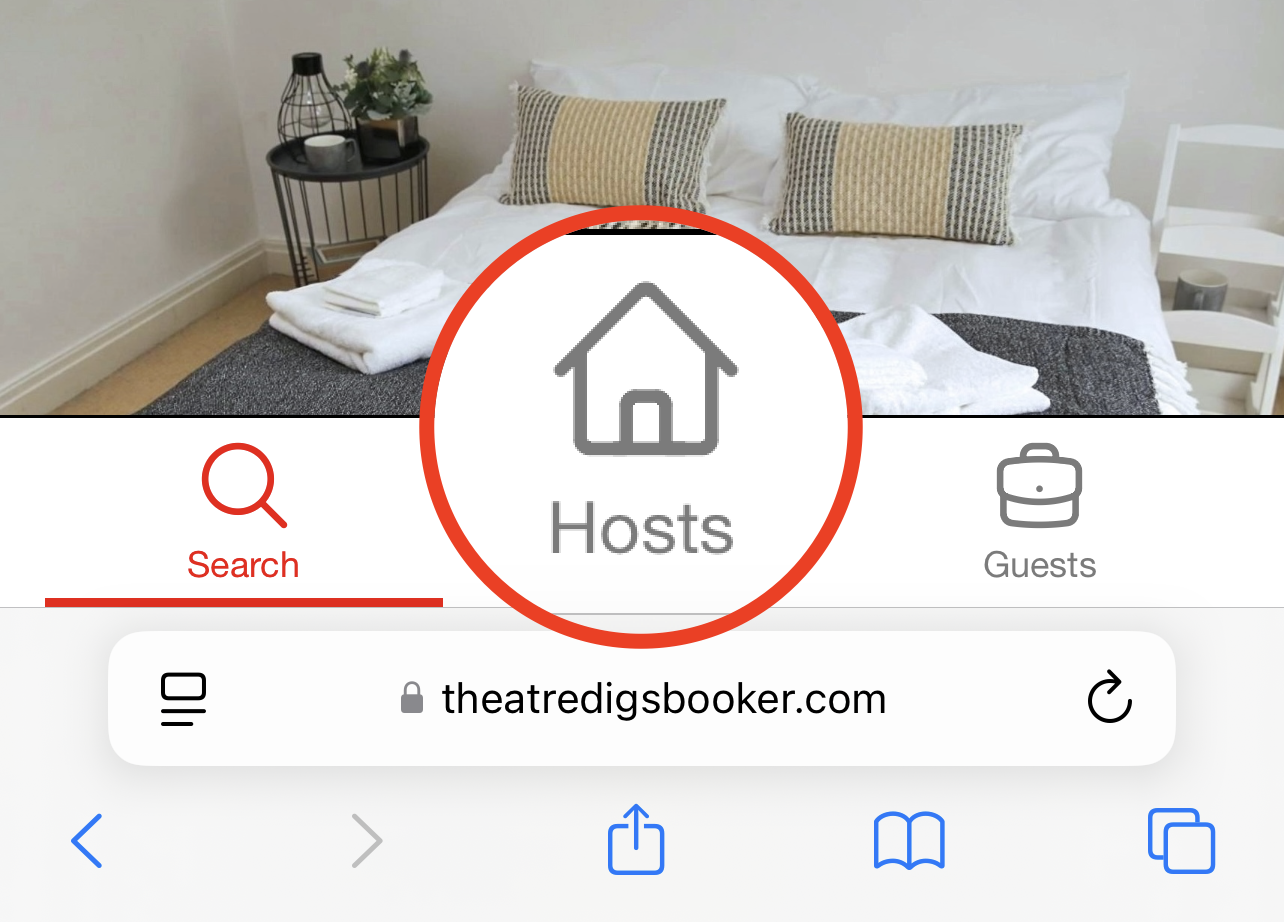
1. Log in as a Host by tapping on 'Hosts'.
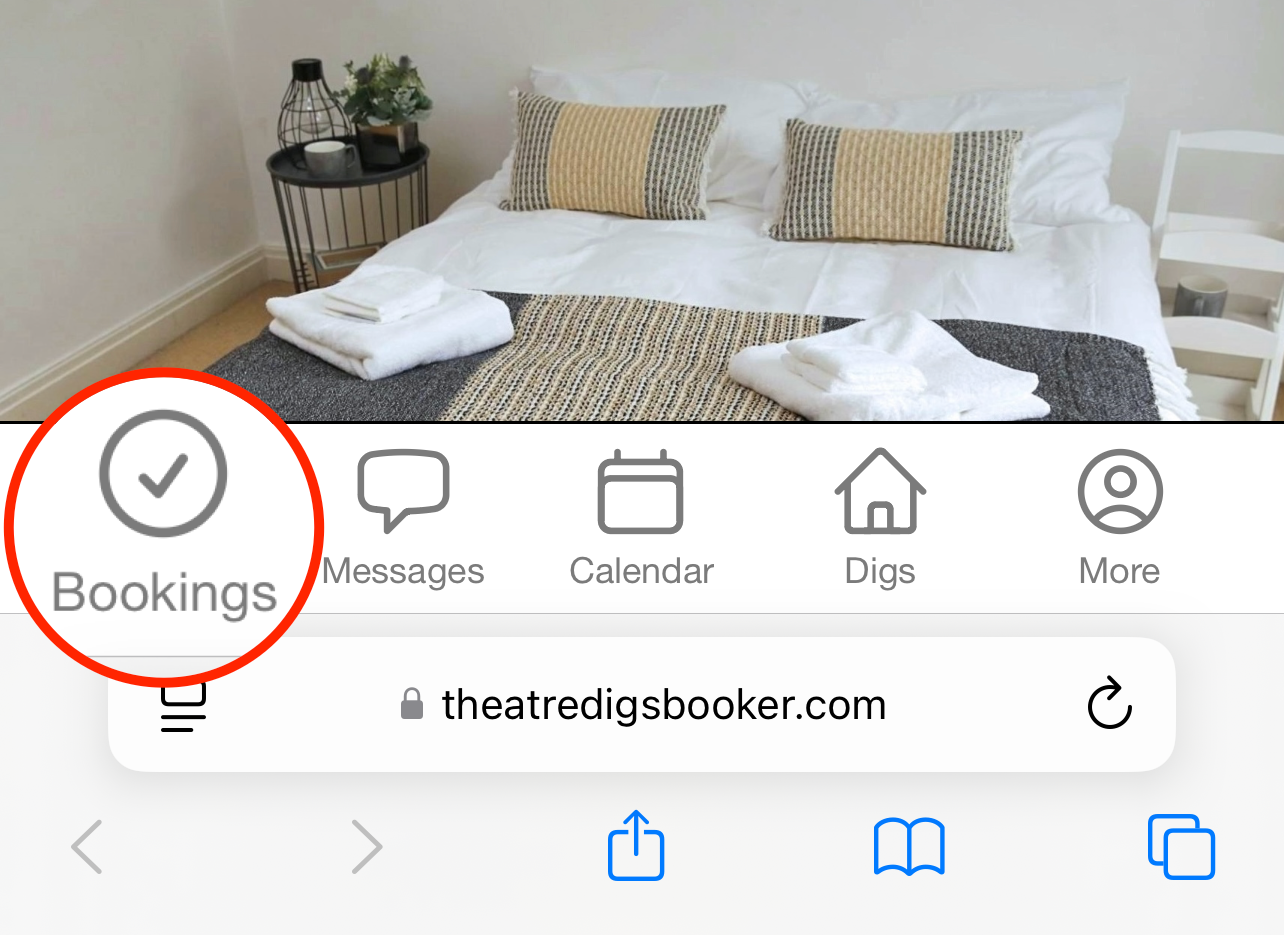
2. Tap on 'Bookings'.
3. Tap on 'All Bookings'.

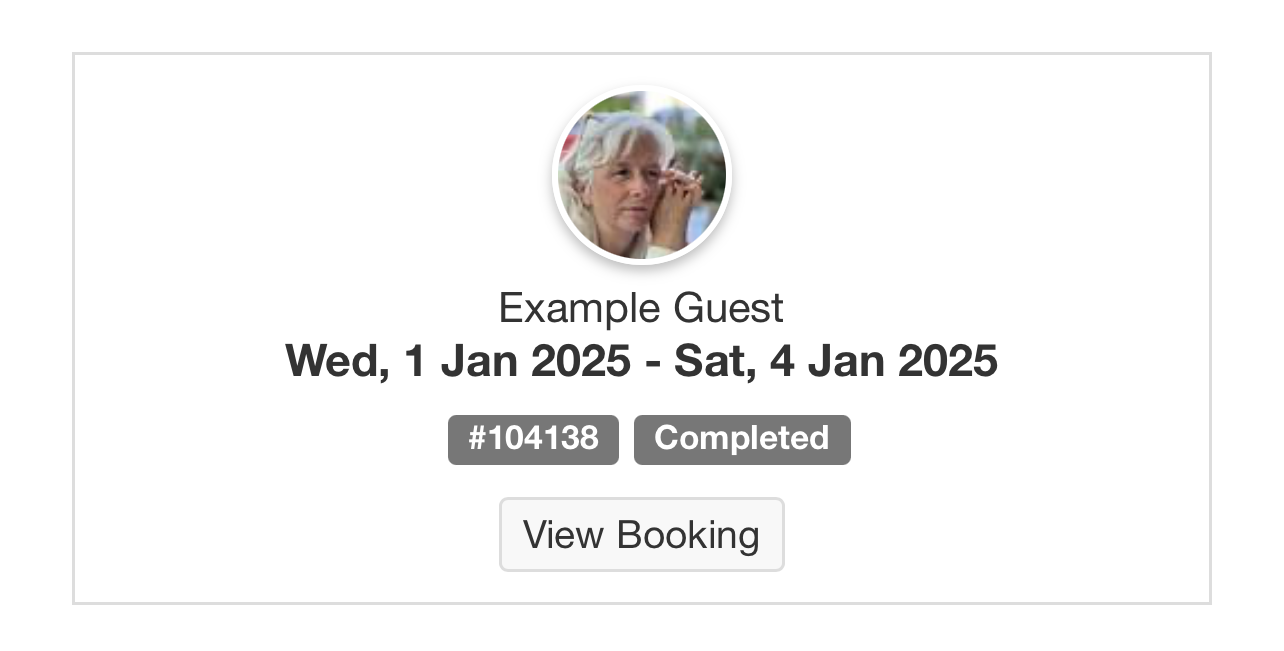
4. Scroll and locate the correct booking and tap 'View Booking'.
5. Scroll down and tap on 'Print Guest Invoice' or 'Print Guest Receipt' depending on what you need.

Please note: the 'Print Guest Receipt' button will only appear once the booking has been marked as complete, which is after the check-out date.
Please note: Please note that the next steps may vary depending on your device or browser. The instructions below were completed using Safari on an iPhone. If you need any additional assistance, feel free to contact support@theatredigsbooker.com, or refer to the user guide for your specific setup.
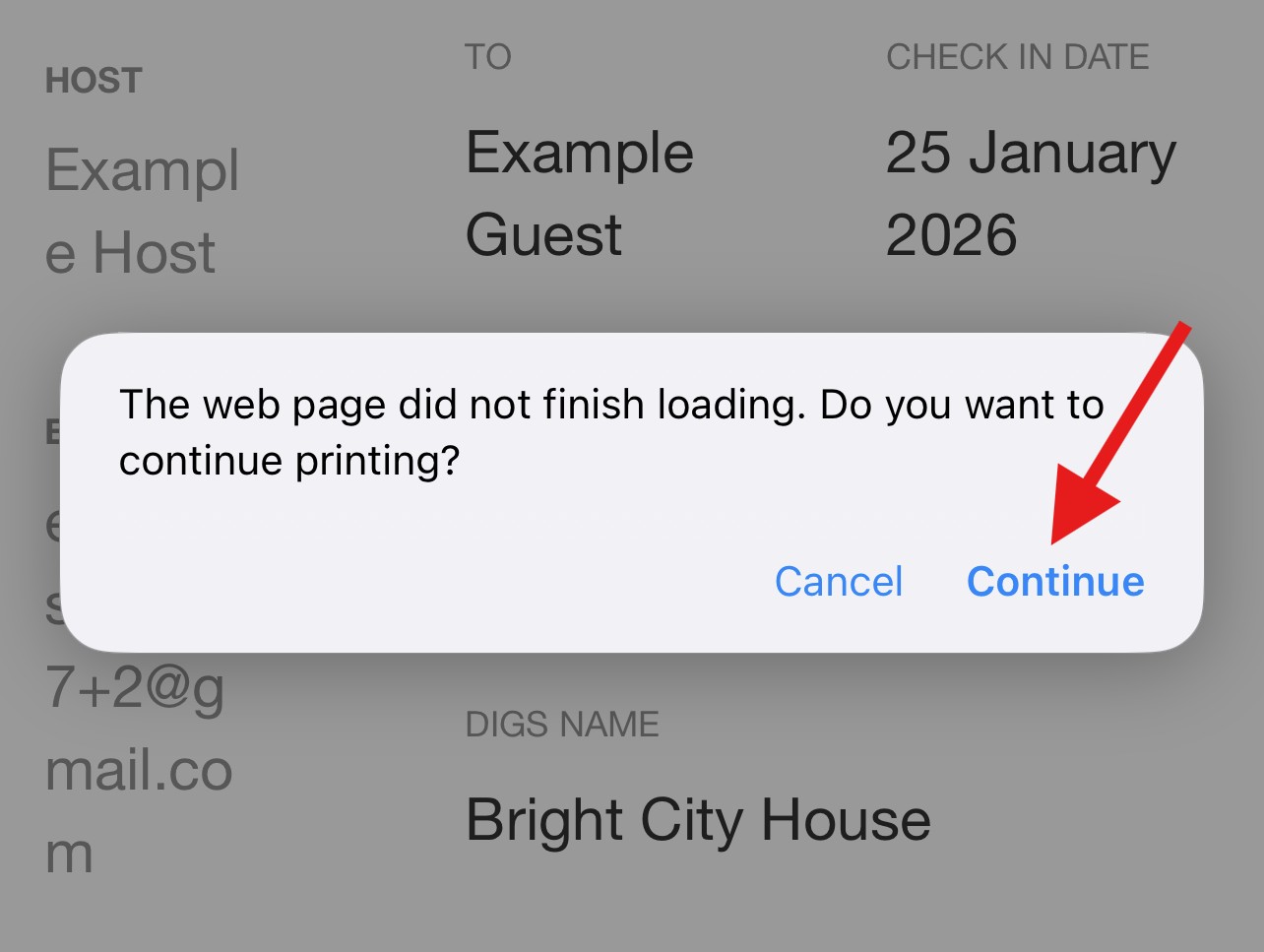
6. Click on 'Continue'.
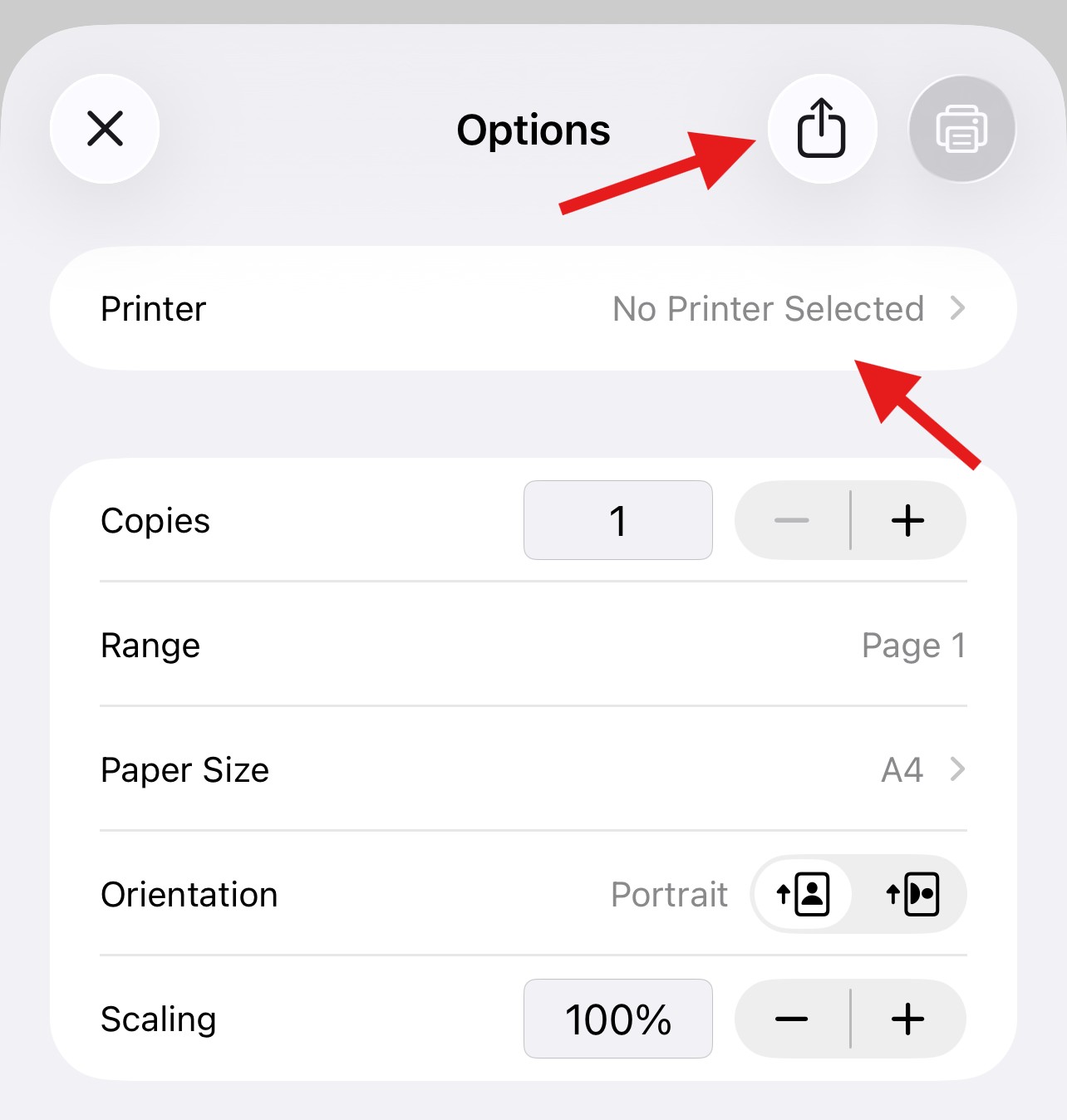
7. To print, select the printer and follow the onscreen instructions. If you're saving the document, or emailing it to someone else then click on the 'Share' icon at the top of the screen.
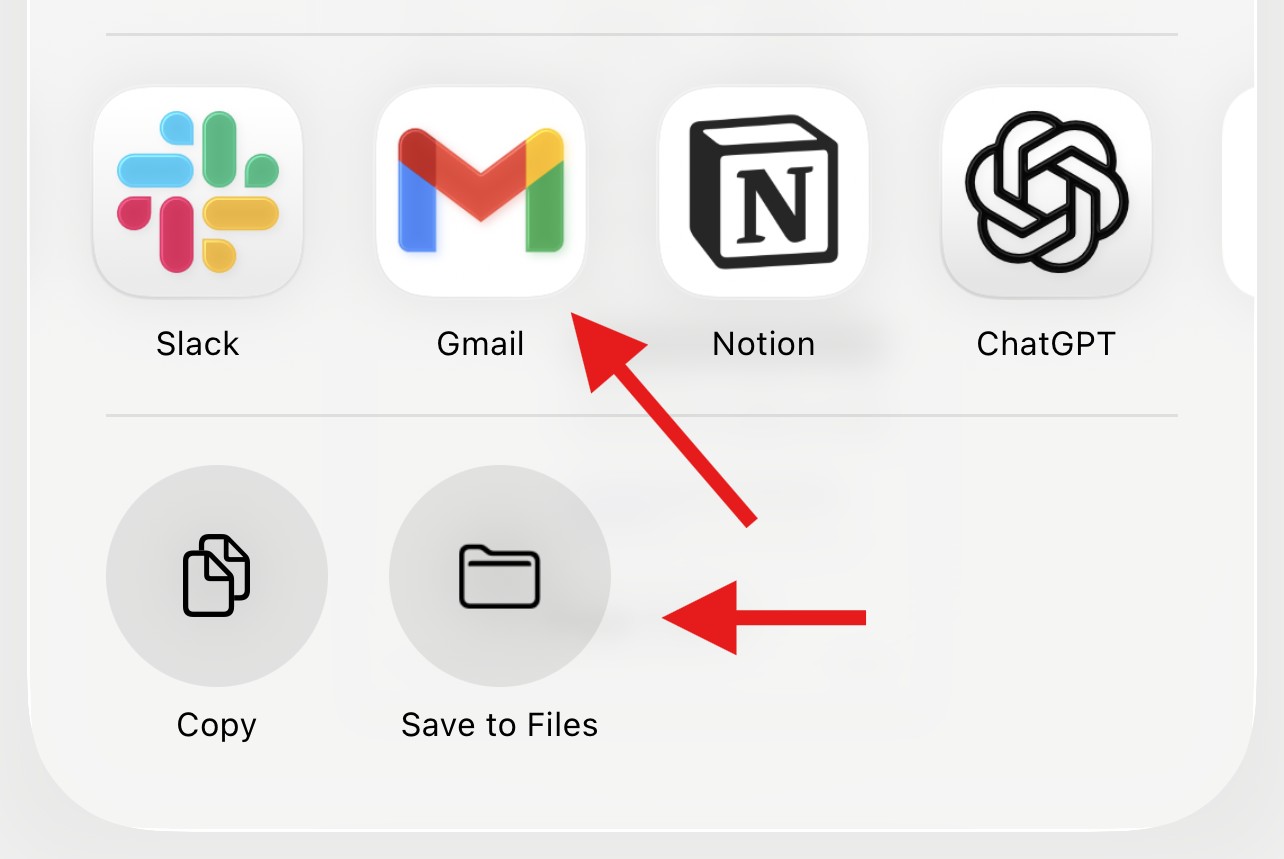
8. If you're sharing the document - select either the contact, application or action from the bottom of the screen depending on your circumstance.
If you have any questions please visit our Help Centre
Was this article helpful?
That’s Great!
Thank you for your feedback
Sorry! We couldn't be helpful
Thank you for your feedback
Feedback sent
We appreciate your effort and will try to fix the article